

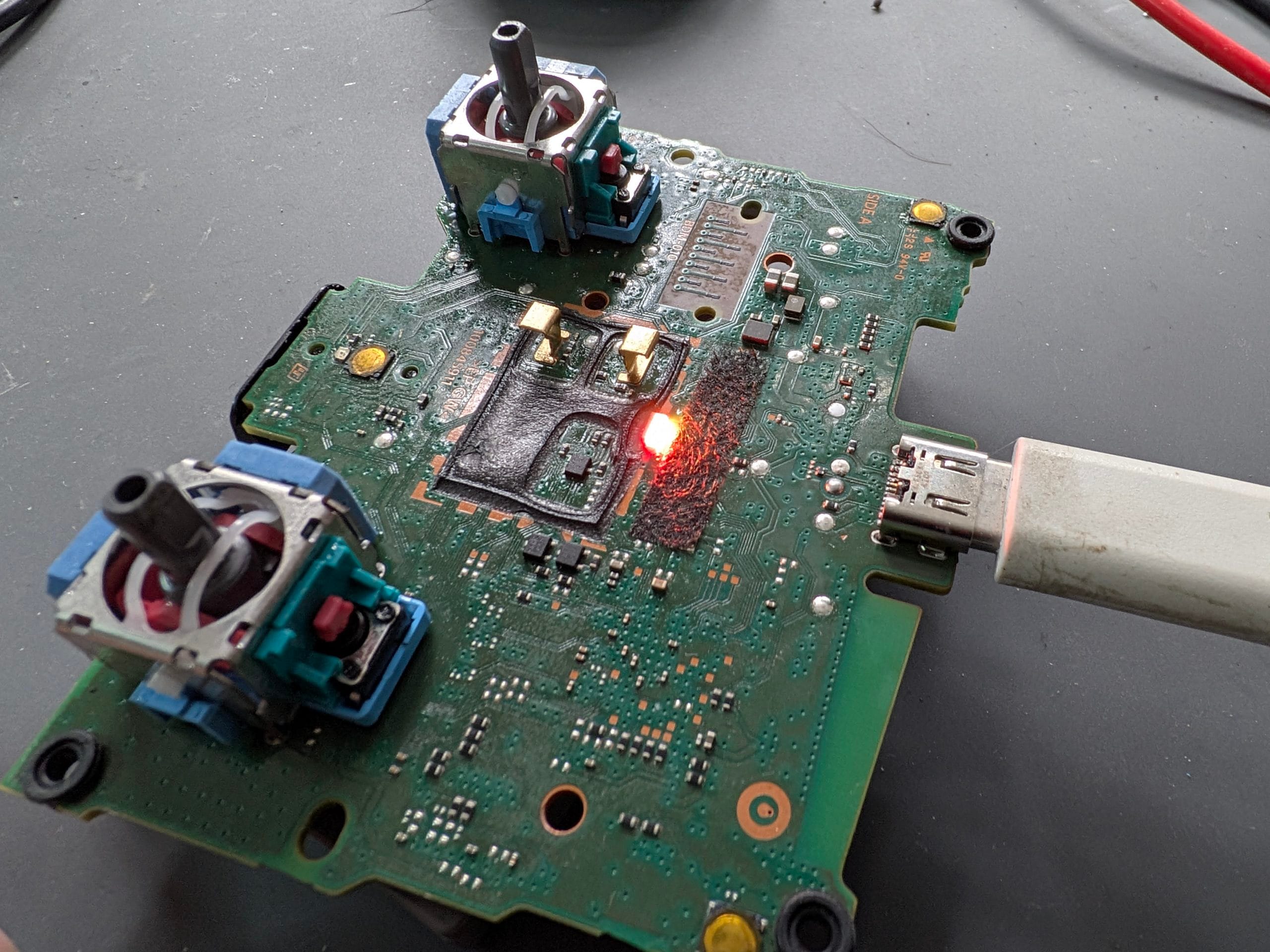
Direct Answer: A DualSense controller that won’t charge is usually down to a faulty cable, a worn or damaged USB-C port, or a battery that’s reached the end of its life — and it’s rarely worth replacing the whole controller over. Saved Game repairs DualSense charging faults, including port replacement, by mail-in.
Key Takeaways
- Always test with a different USB-C cable and power source before assuming the controller itself is faulty.
- A loose or wobbly charging port is physical damage, not something a software reset will fix.
- Port replacement and battery replacement are both routine, low-cost repairs compared to buying a new controller.
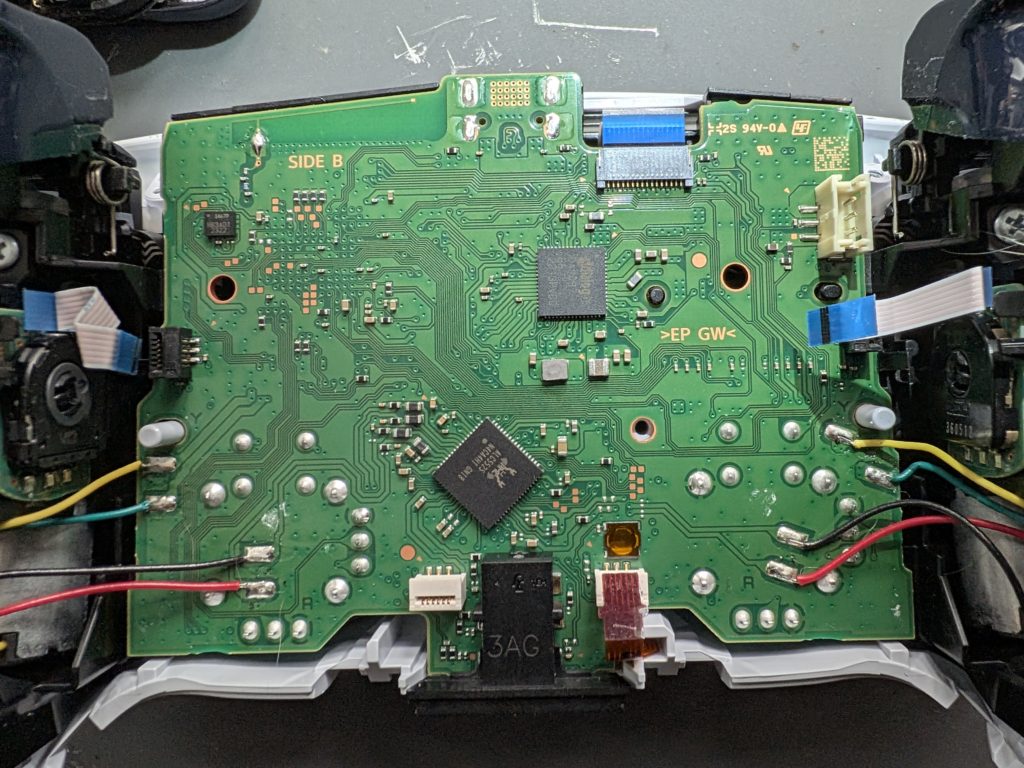

A DualSense that won’t charge is one of the most common controller faults we see, and it’s easy to assume the whole controller is dead when actually it’s almost always one specific, fixable part — the cable, the port, or the battery.
What’s Actually Causing It
| Symptom | Likely Cause | Fix |
|---|---|---|
| No light at all when plugged in | Faulty cable or dead port | Try new cable first, then port inspection |
| Port feels loose or wobbly | Physical port damage | Board-level USB-C port replacement |
| Charges only if the cable is held at an angle | Partially damaged port connection | Board-level USB-C port replacement |
| Charges but battery drains very fast in use | Degraded battery | Battery replacement |
| Light flashes orange/white repeatedly | Pairing or firmware issue, not charging fault | Try a factory reset or wired re-pair first |
Cable, Port, or Battery — How to Tell
Start with the cheapest and easiest check: swap in a different USB-C cable and try a different USB power source (a wall plug rather than the console, or vice versa). If that changes nothing, wiggle the cable gently while it’s plugged in — if the connection cuts in and out or the port itself feels like it’s moving, that’s a port problem. If the port feels solid and the controller charges but then loses charge unusually fast during play, that points to the battery instead.
Why This Happens
USB-C ports on controllers take a lot of physical wear — plugging and unplugging thousands of times, cables getting tugged at an angle, or a controller being charged while sat in an awkward spot. Over time that stress can crack the solder joints holding the port to the internal board, which is exactly the kind of fault a cable swap won’t solve no matter how many you try.
What Saved Game Does
We check whether it’s the cable, the port, or the battery before quoting, so you’re only paying for what’s actually needed. Send it in through mail-in repair, see likely costs on our repair prices page, or check the wider PS5 range on our PS5 repairs page.
Frequently Asked Questions
Why is my DualSense controller not charging?
The most common causes are a faulty USB-C cable, a damaged or worn charging port on the controller itself, or a battery that’s degraded to the point it no longer holds charge. A loose or wobbly port when the cable is plugged in points to physical port damage rather than a cable or battery issue.
How do I know if it’s the cable or the controller that’s faulty?
Try a different USB-C cable and a different power source first. If the light still doesn’t come on or flashes instead of charging normally, the fault is in the controller — either the port or the battery — rather than the cable.
Can a DualSense charging port be repaired?
Yes. A damaged USB-C port on a DualSense is a board-level repair — the port is desoldered and replaced. It’s a small, precise job but well within normal controller repair, and it’s much cheaper than replacing the whole controller.
Is it worth repairing a DualSense or should I just buy a new one?
Repairing the charging port or battery is almost always worth it compared to buying a new controller outright, especially if the rest of the controller — sticks, triggers, haptics — is working fine.
- PS5 Won’t Read Discs, Won’t Eject or Grinds: Model-Specific Fixes
- ModRetro M64: What It Is, What It Does, and Who It’s For
- Will Steam Deck Get GTA 6? Everything Steam Deck Owners Need to Know (2026)
- PS5 Fan Connector Repair | Ripped Off by USer
- Is Your Console Actually Dead? The 10-Minute Check Before You Bin It

Leave a Reply